
MTF Triple MA MT5 – Multi-Timeframe Moving Averages for MT5
Version 1.00
March, 2026
Download MTF Triple MA MT5, a free open-source indicator for MetaTrader 5. Overlay triple moving averages from up to 9 timeframes on one chart, spot MA confluence faster, and improve multi-timeframe trend analysis without switching chart periods.
MTF Triple MA MT5 is a free, open-source MetaTrader 5 indicator that projects triple moving averages from multiple timeframes onto one chart, so you can evaluate structure, momentum, and confluence without changing chart windows.
Open source: View the GitHub repository here: https://github.com/ForexTradingTools/fxtt-mt5-mtf-triple-moving-averages
When traders move between lower-timeframe execution and higher-timeframe trend confirmation, context is often lost. This indicator keeps that context visible by overlaying selected moving average sets from higher periods directly on your active chart. Instead of flipping between M15, H1, H4, and D1 repeatedly, you can stay focused on one execution chart and still make decisions with full directional awareness.
Why Traders Use This Indicator
- View up to 9 timeframes in one place for cleaner top-down analysis.
- Use three moving averages per timeframe (Fast, Medium, Slow) to map trend phases.
- Toggle timeframes quickly from the on-chart panel without reopening settings.
- Spot confluence zones where multiple averages cluster and price often reacts.
- Apply the same process across forex, indices, metals, crypto, and CFDs.
This workflow is practical for traders who enter on lower periods but manage risk from higher-period structure. If a pullback reaches aligned averages from upper timeframes while broader direction remains intact, setup quality is generally easier to evaluate and execution confidence improves.
How MTF Triple MA MT5 Supports Multi-Timeframe Decisions
Traditional charting requires constant timeframe switching, which interrupts concentration and makes comparison slower. By keeping projected averages in one chart space, this tool reduces friction and helps you maintain a consistent decision framework through the whole trade lifecycle: idea, entry, management, and exit review.
Common use cases include:
- Trend filtering: skip entries that conflict with stacked higher-timeframe direction.
- Pullback validation: separate technical retracements from random short-term noise.
- Risk planning: place invalidation logic around meaningful structure, not arbitrary points.
- Trade management: monitor whether momentum continues to hold above or below projected averages.
- Session planning: mark probable reaction zones before London or New York opens.
Built for Real Trading Workflows in MetaTrader 5
The indicator is built to remain readable during live market conditions. On-chart controls reduce clicks, timeframe filtering prevents clutter, and the layout makes it easier to compare structure quickly when volatility increases. This is particularly useful for scalpers and intraday traders who need higher-timeframe confirmation without sacrificing execution speed.
Because the project is open source, advanced users can inspect implementation details, review calculation logic, and adapt behavior to strategy-specific needs. Developers can also propose improvements through the repository, making long-term maintenance and transparency much stronger than closed tools.
To avoid repeating documentation here, full parameter explanations are available in the Settings Reference tab, setup instructions are in the Installation Guide tab, and practical troubleshooting is in the FAQ tab.
Best Practices for Better Signal Quality
For stronger decision quality, treat moving averages as context tools rather than standalone entry triggers. Start with higher-timeframe direction first, then drill down to your execution chart only when structure aligns. Keep your MA periods consistent long enough to produce measurable results, and avoid frequent parameter changes after a small sample of trades. If you run multiple symbols, use the same process checklist so performance comparisons remain meaningful. During volatile sessions, widen your expectations for pullback depth and wait for candle confirmation around confluence zones instead of entering at first touch. Finally, review screenshots of your best and worst trades weekly; this quickly reveals whether your entries respected trend alignment or ignored higher-timeframe structure. Consistent process is usually more impactful than constant indicator changes.
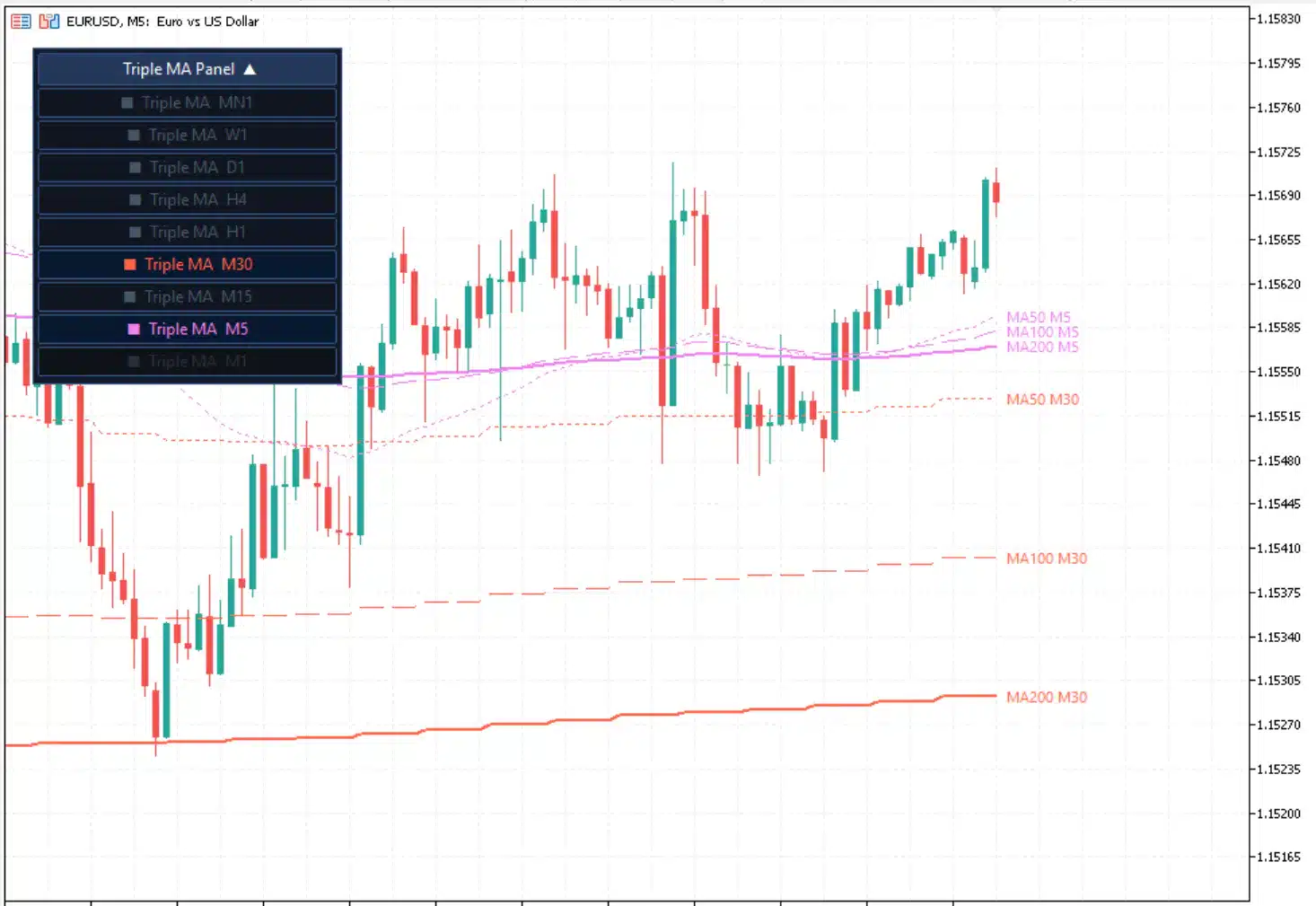
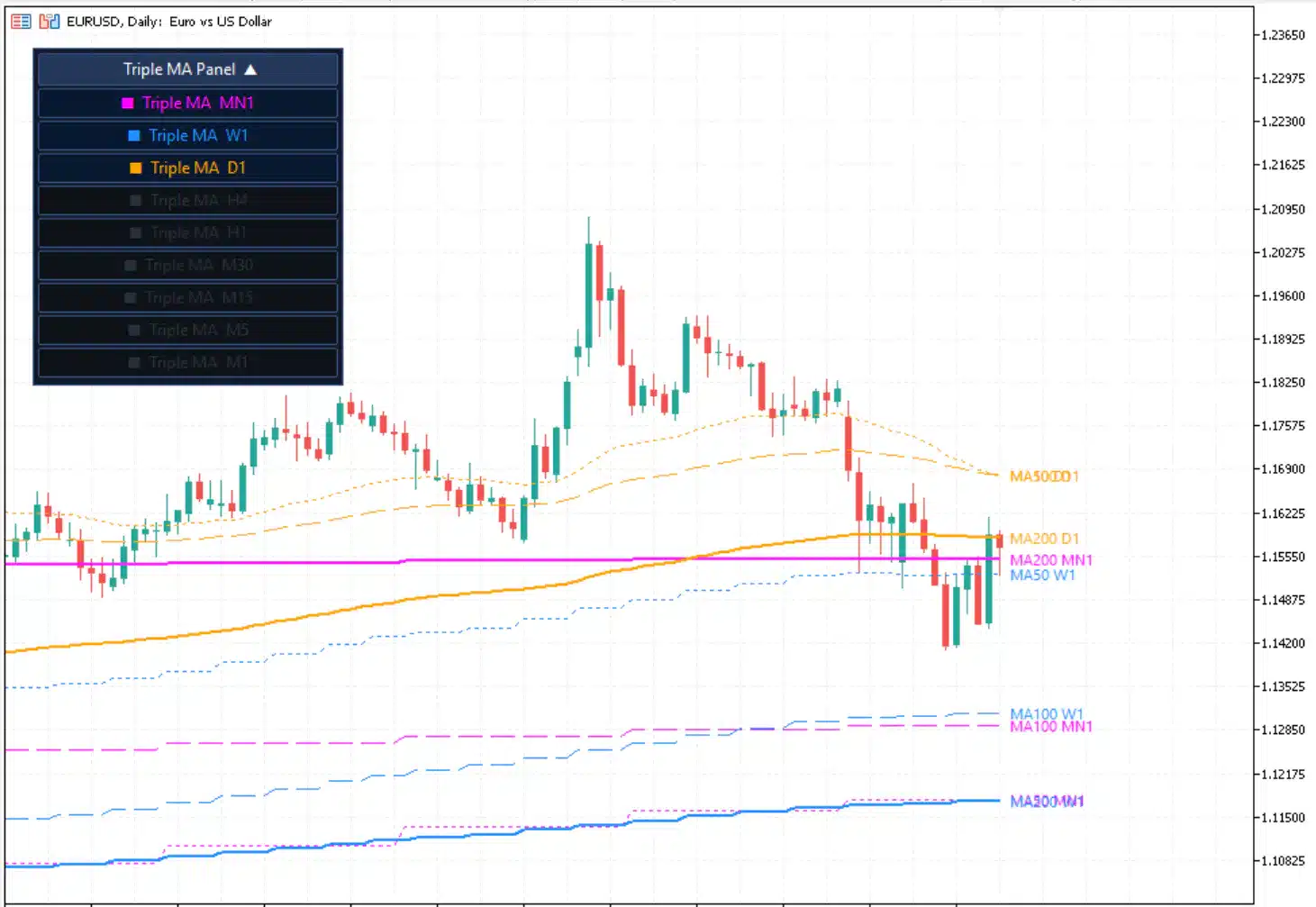
Indicator Screenshots
Related Indicators
If you need the MT4 edition, see MTF Triple Moving Averages – Free Indicator. You can also explore the wider Forex indicators collection for complementary multi-timeframe tools.
Installing the MTF Triple MA MT5 Indicator — Detailed Guide
Installation on Windows
- Click the download button on this page and save the .zip file to your desktop or downloads folder.
- Extract the zip: right-click → Extract All. You will find a
FxTT_MTF_TripleMA.ex5file inside. - In MetaTrader 5, open File → Open Data Folder.
- Navigate to MQL5 → Indicators and paste the
.ex5file there. - Back in MT5, press Ctrl+N to open the Navigator panel, right-click Indicators → Refresh.
- Double-click the indicator in the Navigator or drag it onto any chart to attach it.
Installation on a VPS
- Connect to your VPS via Remote Desktop.
- Copy the
.ex5file to the same MQL5 → Indicators path on the VPS instance of MT5. - Refresh the Navigator as above. The indicator runs persistently even when your local computer is offline.
Saving Your Settings as a Template
Once you have configured the indicator to your preference (periods, colours, timeframes), save those settings so you never have to reconfigure from scratch:
- Right-click on the chart → Template → Save Template.
- Give it a descriptive name (e.g. MTF_Triple_MA_Default).
- Apply that template to any new chart instantly via right-click → Template → [your template name].
Templates are stored locally in MQL5/Profiles/Templates/ and survive indicator updates.
Updating to a New Version
- Download the latest zip from this page.
- Close any charts that have the indicator running, or simply detach it.
- Replace the old
.ex5file in MQL5 → Indicators with the new one. - Restart MT5 or right-click → Refresh in the Navigator.
- Re-attach the indicator — your saved templates will restore all previous settings automatically.
Troubleshooting
| Problem | Solution |
|---|---|
| Indicator not visible in Navigator after refresh | Confirm the file is in MQL5/Indicators (not a subfolder) and that you copied the .ex5, not just the .mq5 source. |
| No MA lines appear on the chart | Open the control panel and ensure at least one timeframe is enabled. Also check that the enabled timeframe is ≥ the current chart timeframe — lower timeframes are auto-disabled. |
| Lines disappear after changing chart timeframe | This is expected: timeframes below the active chart are automatically hidden. Enable higher timeframes from the panel. |
| Indicator loads but panel is not visible | The panel may be outside the visible chart area. Try resizing the chart window or reset the panel position via the indicator inputs (Panel Corner / X-Y Offset settings). |
| MT5 shows an “invalid ex5” error | Re-download the file — the zip may have been corrupted during download. Contact us if the issue persists. |
Open Source
MTF Triple MA MT5 is open source. The full source code is publicly available on GitHub — you can inspect it, report issues, or contribute improvements.
👉 github.com/ForexTradingTools/fxtt-mt5-mtf-triple-moving-averages
MTF Triple MA MT5 — Complete Settings Reference
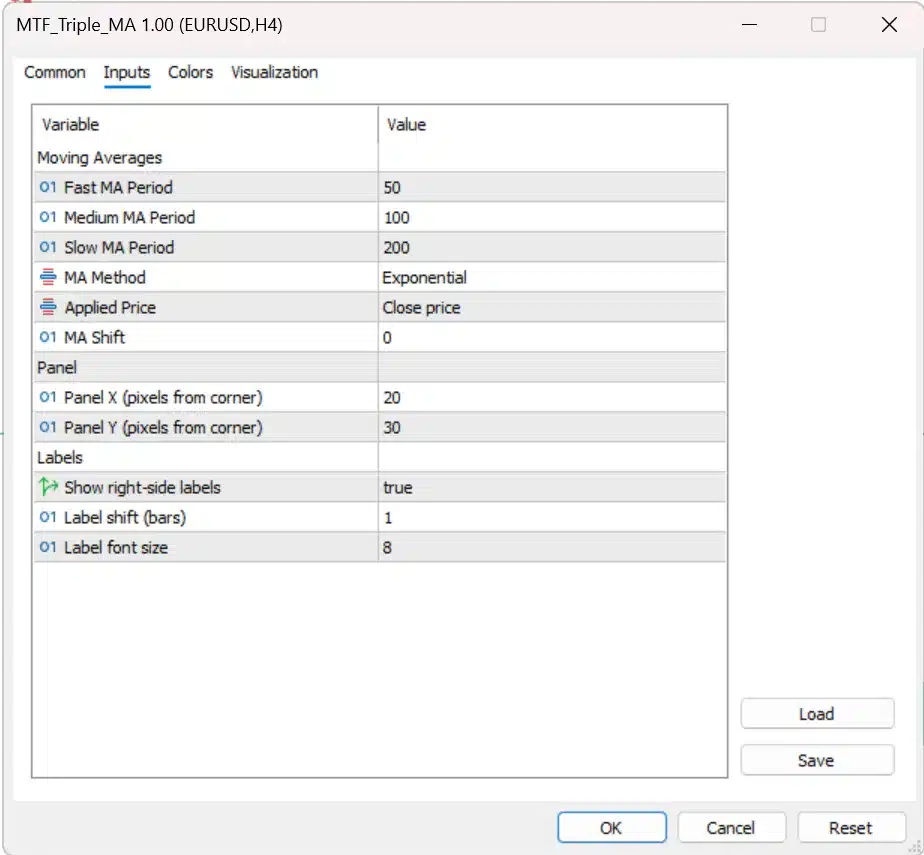
Open the settings window by double-clicking the indicator in the Navigator, or right-clicking the chart → Indicators List → Edit. All parameters are in the Inputs tab.
Moving Averages
The three MA periods are configured independently. Method, Applied Price, and Shift are shared across all three MAs.
| Parameter | Options | Default | Description |
|---|---|---|---|
Fast MA Period | Any integer ≥ 1 | 50 | Number of bars for the Fast moving average. |
Medium MA Period | Any integer ≥ 1 | 100 | Number of bars for the Medium moving average. |
Slow MA Period | Any integer ≥ 1 | 200 | Number of bars for the Slow moving average. |
MA Method | SMA, EMA, SMMA, LWMA | EMA | Calculation method applied to all three MAs. See guide below. |
Applied Price | Close, Open, High, Low, Median, Typical, Weighted | Close | Price value fed into the MA calculation for all three MAs. |
MA Shift | Any integer | 0 | Horizontal bar offset applied to all three MAs. |
Which MA Method Should You Use?
| Method | Responsiveness | Best Used For |
|---|---|---|
| SMA – Simple | Slowest | Clean, noise-free trend reading. Common for identifying long-term structure (e.g. 200 SMA). |
| EMA – Exponential | Fast | Most popular in trading. Balances responsiveness and smoothness. Good default for all three MAs. |
| SMMA – Smoothed | Very slow | Very smooth, ideal as a slow trend filter. Effectively uses a longer period than its input value suggests. |
| LWMA – Linear Weighted | Fastest | Maximum responsiveness. Can produce more whipsaws. Better suited for the Fast MA only. |
Timeframe Visibility
Each of the nine timeframes (M1 to MN1) can be toggled on or off directly from the draggable control panel on the chart — no need to reopen the settings window. Timeframes below the current chart period are automatically disabled and greyed out in the panel.
| Timeframe | Auto-disabled when… |
|---|---|
| MN1 (Monthly) | Never — always available. |
| W1 (Weekly) | Chart is on MN1. |
| D1 (Daily) | Chart is on W1 or MN1. |
| H4 (4-Hour) | Chart is on D1 or above. |
| H1 (1-Hour) | Chart is on H4 or above. |
| M30 | Chart is on H1 or above. |
| M15 | Chart is on M30 or above. |
| M5 | Chart is on M15 or above. |
| M1 | Chart is on M5 or above. |
Panel
| Parameter | Options | Default | Description |
|---|---|---|---|
Panel X | Integer (pixels) | 20 | Horizontal distance of the panel from the top-left corner of the chart. |
Panel Y | Integer (pixels) | 30 | Vertical distance of the panel from the top-left corner of the chart. |
Labels
Right-side MA name labels can be shown at the latest bar to identify each line without hovering.
| Parameter | Options | Default | Description |
|---|---|---|---|
Show right-side labels | true / false | true | Show or hide the MA name labels on the right edge of the chart. |
Label shift (bars) | Any integer | 1 | How many bars from the last bar to place the labels. Increase if labels overlap the price. |
Label font size | Integer (points) | 8 | Font size of the right-side labels. |
MTF Triple MA MT5 — Frequently Asked Questions
How is this different from just adding three separate MA indicators to my chart?
Adding three standard MT5 Moving Average indicators only gives you three MAs for the current chart timeframe. The MTF Triple MA calculates and projects Fast, Medium, and Slow MAs from up to nine different timeframes simultaneously on the same chart. That means you can see, for example, the D1 and H4 MAs while trading on an M15 chart — without opening multiple chart windows or constantly switching timeframes.
Will the indicator slow down my MetaTrader 5?
The indicator is optimised for performance. It uses MT5’s native multi-timeframe data requests and only recalculates when a new bar opens on an enabled timeframe, not on every tick. With all nine timeframes active, you may notice a brief calculation on the very first load, but live trading performance is not affected.
Can I use different MA methods for the Fast, Medium, and Slow MAs?
No. The MA Method and Applied Price settings are shared across all three MAs. If you need mixed methods on the same chart — for example, an EMA for the Fast and an SMA for the Slow — you can attach a second instance of the indicator with different method settings and disable the lines you do not need from each instance.
What period settings should I start with?
The defaults (Fast: 50, Medium: 100, Slow: 200) are a widely used combination for trend-following on most timeframes. If you follow a specific MA-based system (e.g. 10/20/50 or 8/21/55 EMA ribbons), simply adjust the three period inputs to match your preferred setup.
Does the indicator work on non-forex instruments like US30, BTCUSD, or XAUUSD?
Yes. The indicator is entirely symbol-agnostic — it works on any instrument your MT5 broker provides, including indices (US30, NAS100, DE40), commodities (XAUUSD, XAGUSD), cryptocurrencies (BTCUSD, ETHUSD), and stocks. The MA calculations are based on price data only, not instrument type.
Can I run multiple instances of the indicator on the same chart with different settings?
Yes. You can attach the indicator more than once to the same chart, each with a different configuration — for example, one instance using 50/100/200 EMAs and another using 10/20/50 SMAs. Use the input name field to label each instance so they are easy to distinguish in the Indicators List.
Does the draggable panel save its position between sessions?
The panel position is saved within your MT5 chart profile or template. If you save the chart as a template after positioning the panel, it will reopen in the same location. If you close the chart without saving, the panel will revert to the default position set by the Panel X / Panel Y inputs.
Can I use this indicator for backtesting in MT5’s Strategy Tester?
The indicator renders correctly in the MT5 visual backtesting mode (Strategy Tester → Visual Mode). This lets you scroll through historical price data and observe how the multi-timeframe MAs would have appeared in real time, which is useful for manually evaluating setups and refining your MA settings before live use.
What happens to my settings when a new version is released?
Settings are not stored inside the indicator file itself — they live in your MT5 templates and profiles. Replacing the .ex5 file with a new version does not delete your saved settings. After updating, re-attach the indicator from your saved template and all your custom periods, colours, and timeframe preferences will be restored. See the Installation Guide tab for the full update procedure.
Version 1.00 2026.03.18
Initial release.
- 9 timeframes (M1–MN1) displayed simultaneously on one chart
- Three MAs per timeframe: Fast, Medium, and Slow
- Draggable control panel with one-click timeframe toggles
- Automatic lower-timeframe filtering
- Full MA customisation: period, shift, method (SMA/EMA/SMMA/LWMA), applied price, line style, width, and colour
- No repainting on closed bars
Open Source & Updates
This indicator is open source. Source code, issue tracker, and all releases are on GitHub:
👉 github.com/ForexTradingTools/fxtt-mt5-mtf-triple-moving-averages
Updates are free. Download the latest version from this page or directly from the GitHub releases page and replace the .ex5 file in your MQL5/Indicators folder.
Images Gallery
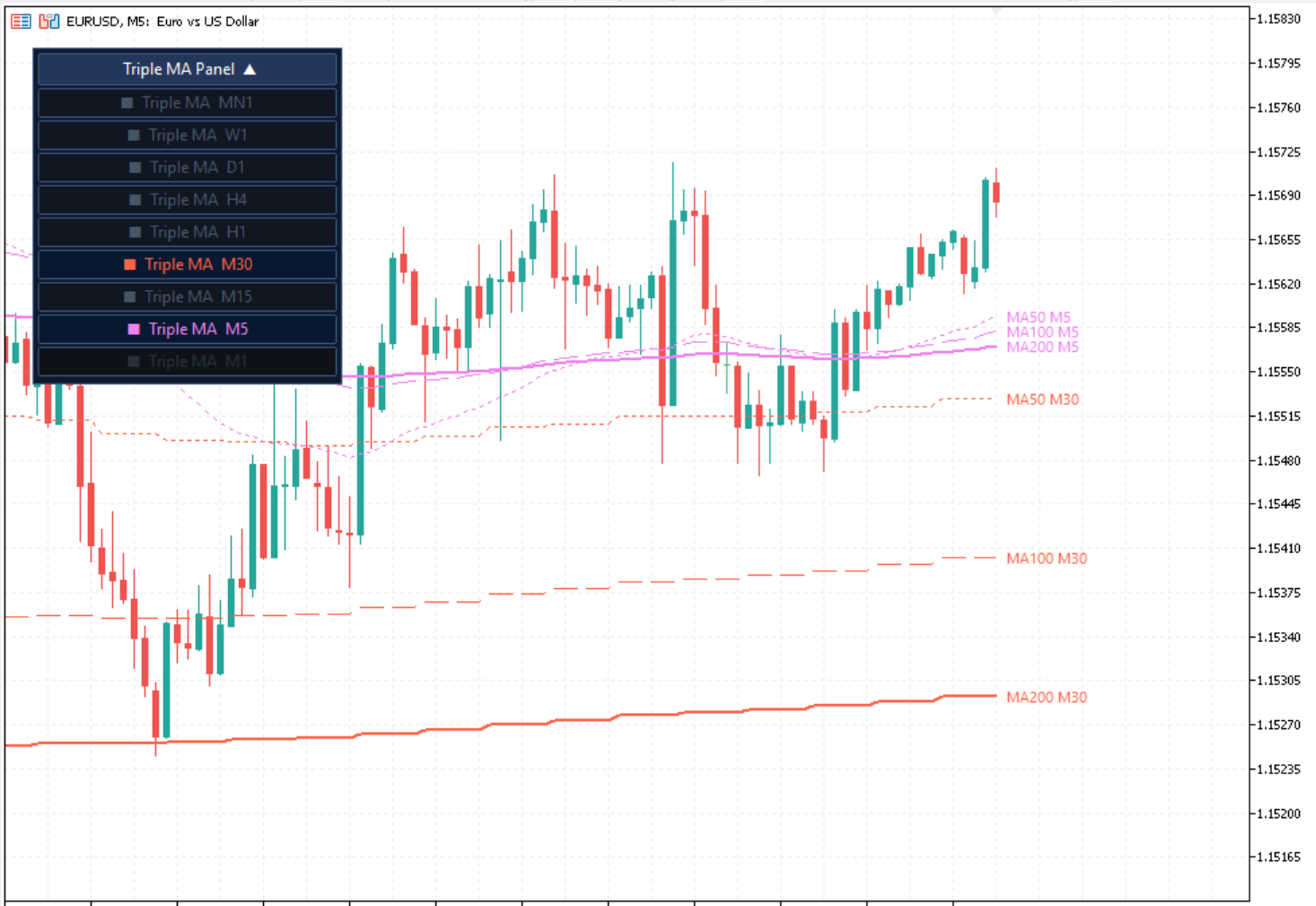
MTF Triple MA MT5 M5 Chart (PNG)
MTF Triple MA MT5 on M5 chart
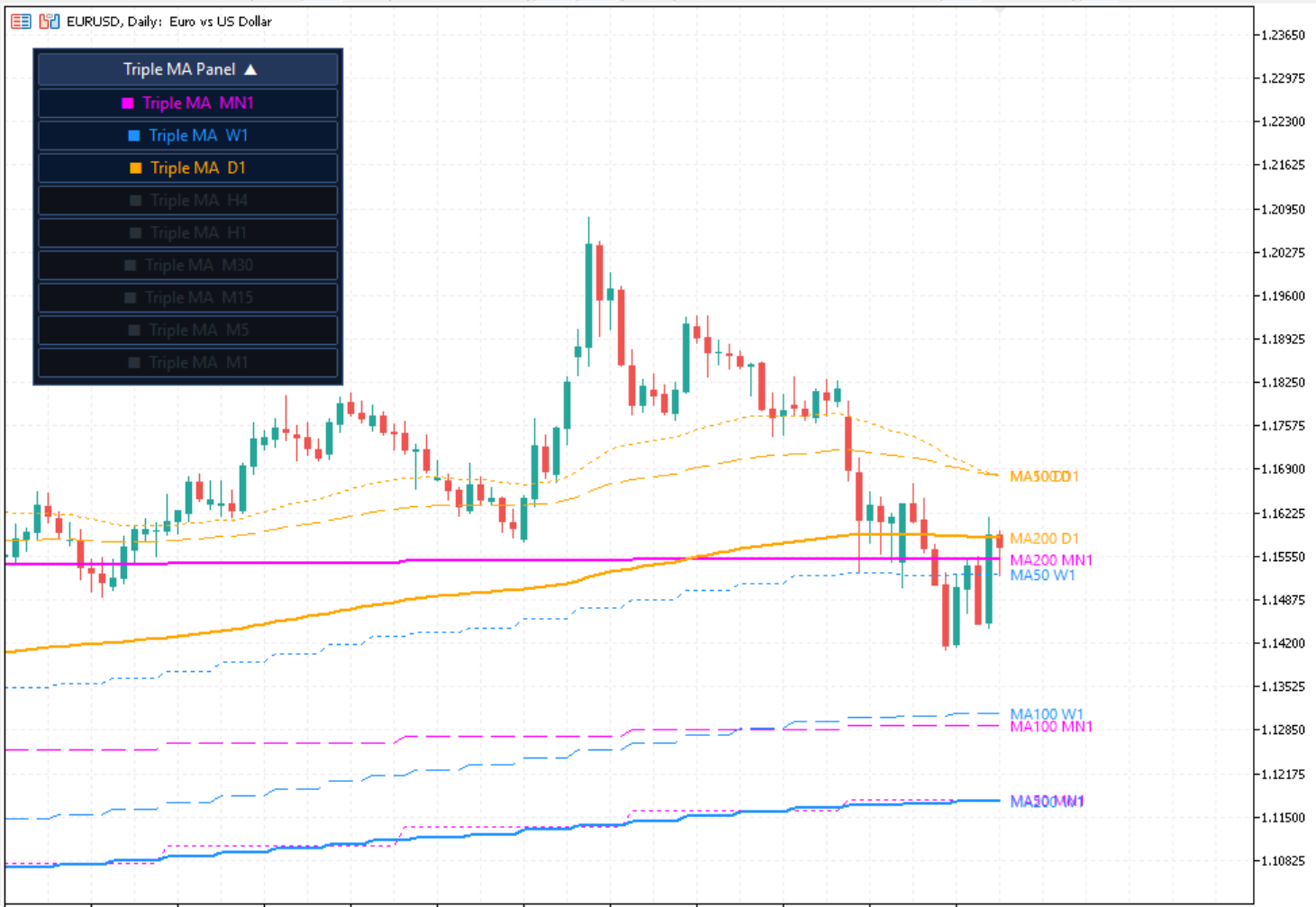
MTF Triple MA MT5 D1 Chart (PNG)
MTF Triple MA MT5 on D1 chart
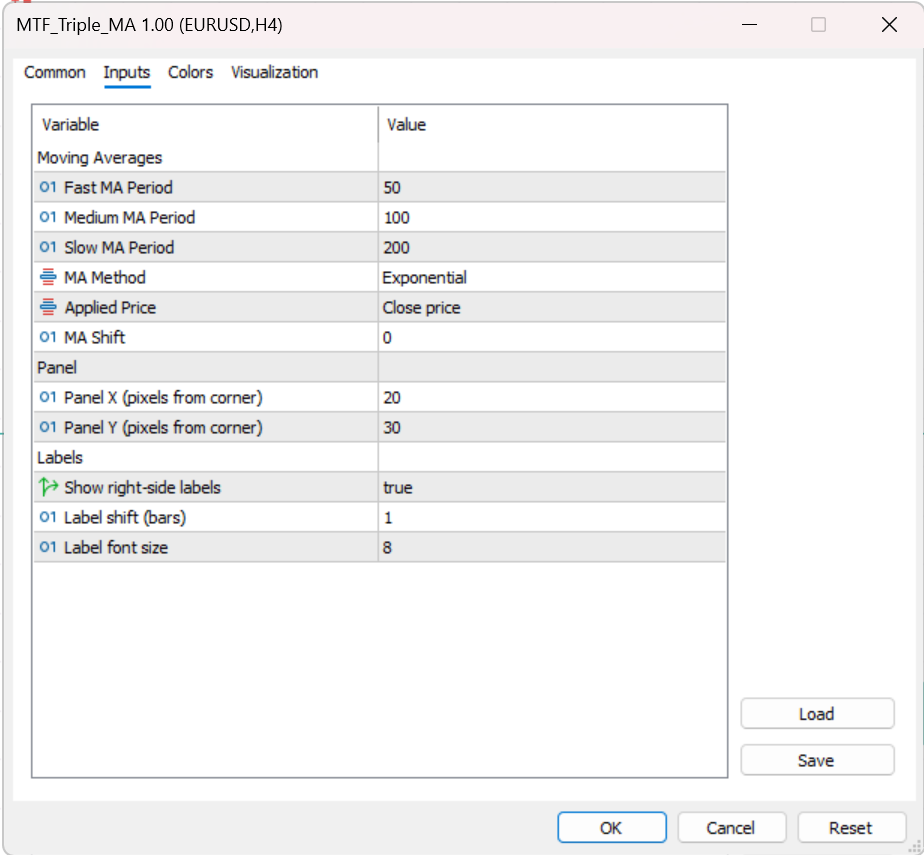
MTF Triple MA MT5 Settings (PNG)
MTF Triple MA MT5 settings panel
Reviews
There are no reviews yet.