
FXTT Session High Low MT5 – Free Session Levels Indicator for MetaTrader 5
Version 2.20
March, 2026
Download the free FXTT Session High Low indicator for MetaTrader 5 and instantly mark the high and low of the Asia, Europe, and New York forex sessions on any chart. Color-coded session zones, daily H/L lines, background shading, and one-click toggle buttons — all fully customisable for any trading style.
FXTT Session High Low MT5 is a free forex session high low indicator for MetaTrader 5 that draws the high and low price levels for the Asia, Europe, and New York trading sessions directly on your chart. Instead of manually marking session extremes each day, the indicator automatically scans history and plots the session boundaries up to five lookback periods — so you always have the key session levels visible at a glance.
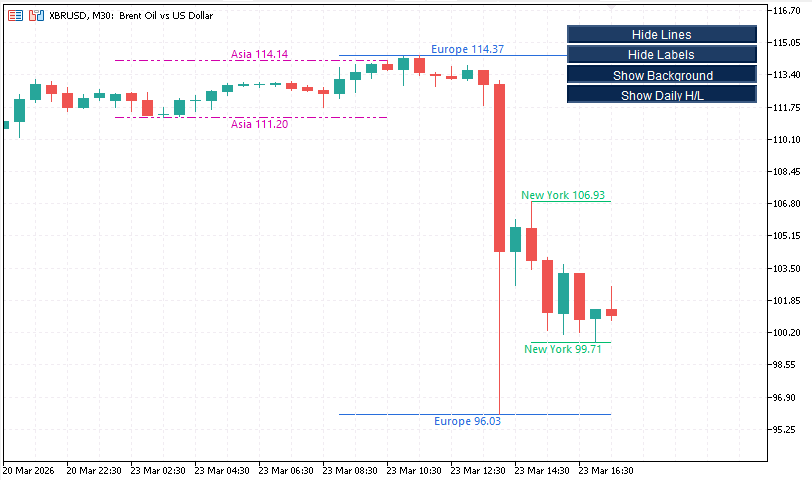
FXTT Session High Low MT5 — Asia, Europe and New York session levels on a 30-minute chart
This MT5 session indicator is built for traders who use session high and low levels as key support and resistance zones, liquidity targets, breakout reference points, or daily bias markers. An optional daily high/low layer adds a higher-timeframe reference without needing a separate indicator, and four one-click toggle buttons let you show or hide lines, labels, background shading, and the daily H/L instantly — without reopening settings.
If you are new to MetaTrader 5, visit the official MetaTrader 5 website to learn more about the platform. To understand why session levels matter, read about forex market hours and sessions.
You may also like our MTF Triple MA MT5 indicator and our MTF Bollinger Bands MT5 indicator.
What Is the FXTT Session High Low Indicator for MT5?
The FXTT Session High Low MT5 indicator identifies the highest and lowest price reached within each major forex trading session — Asia, Europe, and New York — and draws horizontal lines marking those extremes on the chart. Each session is tracked independently using configurable GMT hour ranges, and broker time is automatically adjusted using a configurable GMT offset so the session windows align correctly regardless of your broker's server time.
The current open session is drawn with a solid line that optionally extends right, giving you a live boundary to watch in real time. Past sessions switch to a configurable historical line style (dashed, dot-dash, etc.) so you can instantly distinguish live levels from historical reference levels.
Forex Session Levels Supported
The indicator covers the three major forex trading sessions:
- Asia Session — default 00:00–09:00 GMT (configurable)
- Europe Session — default 07:00–16:00 GMT (configurable)
- New York Session — default 13:00–22:00 GMT (configurable)
Each session has independently configurable start and end hours, so you can adjust the windows to match your broker, your trading style, or regional variations in session activity.
FXTT Session High Low MT5 — Indicator Features
- Three major sessions on one chart. Asia, Europe, and New York high/low lines displayed simultaneously without switching charts or adding multiple indicators.
- Configurable lookback. Show the last 1–10 session occurrences per session type so you always have historical context alongside today's live levels.
- Daily High/Low layer. An independent D1-based high/low layer adds the current and recent daily extremes as a higher-timeframe reference — fully toggleable without removing the session lines.
- Background shading. Optional color-filled rectangles shade each session's time window to give an immediate visual of where price was active during that session period.
- Chart text labels. Each high and low line is labelled with the session name and exact price level. Labels update in real time as the current session evolves.
- Four toggle buttons. One-click on-chart buttons to show or hide Lines, Labels, Background, and Daily H/L — no need to reopen the settings window.
- Configurable panel position. Position the button panel at any corner of the chart with custom X/Y pixel offsets.
- Per-session color and style. Each session has its own high color, low color, background color, line style, and line width — fully independent from the other sessions.
- GMT offset support. Set your broker's GMT offset (e.g. +2 for GMT+2) to keep all session windows correctly time-aligned regardless of broker server time.
- Extend current session lines right. Optionally project the current open session's high/low lines to the right edge of the chart for real-time boundary awareness.
- No repainting. Completed session high and low values are fixed on closed bars and never change retroactively.
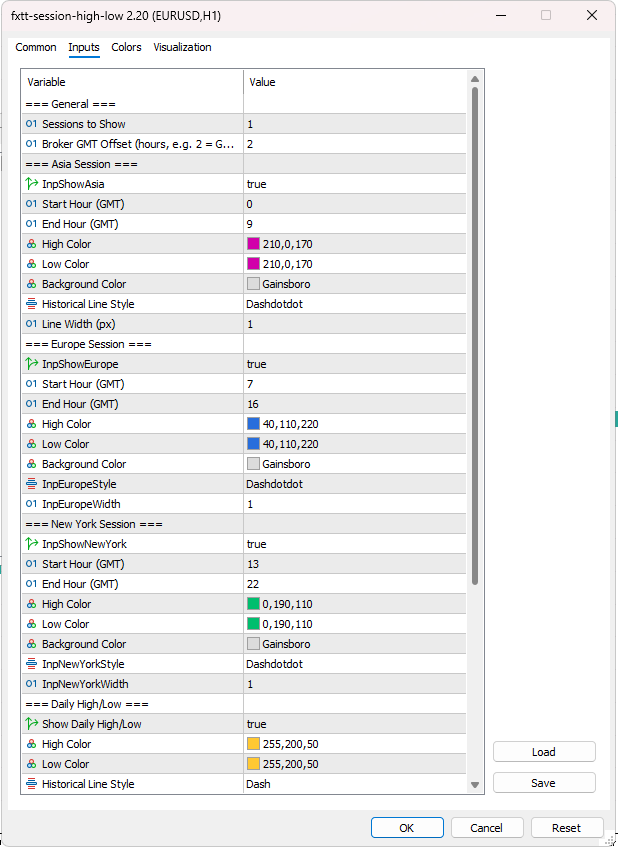
Indicator Settings
Why Traders Use Session High and Low Levels
- Use the Asia session high and low as a defined range to watch for breakouts or reversals at the London open.
- Mark the Europe session high or low as a reference zone for New York session continuation or reversal trades.
- Identify liquidity sweep targets where price takes out a prior session high or low before reversing.
- Combine session highs and lows with the daily H/L layer to understand whether the day's range is expanding or compressing relative to session activity.
- Use session extremes as take-profit or stop-loss reference levels when managing open trades into the close of a session.
- Build a session-based daily bias: if New York closes below the Asia session low, the bearish momentum may continue into the next Asia open.
- Reduce chart clutter by toggling off sessions you are not currently trading — keep only the relevant layers visible during your trading hours.
Session Hours and GMT Configuration
All session windows are defined in GMT hours and the indicator translates them to broker server time using the Broker GMT Offset input. For example, if your broker runs on GMT+2 (standard for most EU brokers during winter), set the offset to 2. During summer (DST), adjust to 3 if needed.
The default session windows are:
| Session | Default GMT Start | Default GMT End | Default Colour |
|---|---|---|---|
| Asia | 00:00 | 09:00 | Purple / Magenta |
| Europe | 07:00 | 16:00 | Blue |
| New York | 13:00 | 22:00 | Green |
All hours are configurable independently. The indicator correctly handles session windows that span midnight (e.g. a session starting at 22:00 and ending at 06:00).
How to Install and Use the FXTT Session High Low Indicator for MT5
- Download the free indicator package using the button on this page.
- Copy the indicator file into your MetaTrader 5 / MQL5 / Indicators folder.
- Restart MetaTrader 5 or right-click the Navigator panel and select Refresh.
- Attach the indicator to any chart by double-clicking it in the Navigator.
- Set the Broker GMT Offset to match your broker's server time (e.g. 2 for GMT+2).
- Use the toggle buttons to show or hide lines, labels, background shading, and the daily H/L layer.
- Adjust session colors and styles to match your chart theme.
Compatibility
Platform: MetaTrader 5
Instruments: Forex, gold, indices, crypto, and all MT5-supported symbols
Timeframes: M1 to MN1
Works with: Manual trading, visual analysis, EAs running on separate charts
FAQ
What is the FXTT Session High Low MT5 indicator?
It is a free MetaTrader 5 indicator that automatically draws the high and low price levels for the Asia, Europe, and New York forex trading sessions on your chart, with optional background shading, daily H/L lines, chart labels, and one-click toggle buttons.
Is this indicator free to download?
Yes. The FXTT Session High Low MT5 indicator is completely free. Click the download button on this page and install it in your MetaTrader 5 platform.
How do I set the correct broker GMT offset?
Check what time your broker's server shows when UTC/GMT is at midnight. If the broker shows 02:00, your GMT offset is +2. Most EU-based brokers use GMT+2 in winter and GMT+3 in summer (DST). Set the Broker GMT Offset input accordingly so all three session windows align correctly.
Can I change the session hours?
Yes. Each session has independent Start Hour and End Hour inputs in GMT. Adjust them to match your preferred session definitions or your broker's trading hours.
Does the indicator repaint?
No. Session high and low values are fixed once a session closes. The current open session updates tick-by-tick, but completed session levels never change retroactively.
Can I hide individual sessions?
Yes. Each session (Asia, Europe, New York) has a Show toggle in the input settings. You can also hide all lines, labels, background, or the daily H/L at any time using the on-chart toggle buttons without opening settings.
What does the Daily High/Low layer show?
The Daily H/L layer draws the high and low of each complete D1 bar using a separate color and style, giving you a clean daily range reference alongside the session levels. The lookback period matches the Sessions to Show input. Toggle it on or off with the Daily H/L button.
Can I use this indicator on non-forex instruments?
Yes. The indicator works on any instrument in your MT5 terminal — forex pairs, XAUUSD (gold), indices (US30, NAS100), and cryptocurrencies. The session windows are time-based and apply regardless of instrument type.
Will it work on a VPS?
Yes. The indicator loads and runs normally on a VPS and does not interfere with Expert Advisors on the same or other charts.
Is there an MT4 version?
An MT4 version is not currently available. This indicator is designed specifically for MetaTrader 5.
Installing the FXTT Session High Low MT5 Indicator — Detailed Guide
Installation on Windows
- Click the download button on this page and save the .zip file to your desktop or downloads folder.
- Extract the zip: right-click → Extract All. You will find a
FxTT_SessionHighLow.ex5file inside. - In MetaTrader 5, open File → Open Data Folder.
- Navigate to MQL5 → Indicators and paste the
.ex5file there. - Back in MT5, press Ctrl+N to open the Navigator panel, right-click Indicators → Refresh.
- Double-click the indicator in the Navigator or drag it onto any chart to attach it.
- In the inputs window, set the Broker GMT Offset to match your broker’s server time.
Installation on a VPS
- Connect to your VPS via Remote Desktop.
- Copy the
.ex5file to the same MQL5 → Indicators path on the VPS instance of MT5. - Refresh the Navigator as above. The indicator runs persistently even when your local computer is offline.
Saving Your Settings as a Template
Once you have configured the indicator (session colors, GMT offset, lookback), save those settings so you never have to reconfigure from scratch:
- Right-click on the chart → Template → Save Template.
- Give it a descriptive name (e.g. Session_HighLow_Default).
- Apply that template to any new chart instantly via right-click → Template → [your template name].
Templates are stored in MQL5/Profiles/Templates/ and survive indicator updates.
Updating to a New Version
- Download the latest zip from this page.
- Close any charts that have the indicator running, or detach it first.
- Replace the old
.ex5file in MQL5 → Indicators with the new one. - Restart MT5 or right-click → Refresh in the Navigator.
- Re-attach the indicator — your saved templates restore all settings automatically.
Troubleshooting
| Problem | Solution |
|---|---|
| Indicator not visible in Navigator after refresh | Confirm the file is in MQL5/Indicators (not a subfolder) and that you copied the .ex5, not just the .mq5 source. |
| Session lines appear at wrong times | Check that the Broker GMT Offset input matches your broker’s server time offset. Adjust for DST if your broker observes it. |
| No lines visible on the chart | Ensure the Lines toggle button is not pressed (it should read “Hide Lines” when lines are visible). Check that at least one session is enabled in the inputs. |
| Toggle buttons not visible | The panel may be outside the visible area. Reset the X/Y offsets in the indicator inputs or change the panel corner setting. |
| MT5 shows an “invalid ex5” error | Re-download the file — the zip may have been corrupted. Contact us if the issue persists. |
FXTT Session High Low MT5 — Complete Settings Reference
Open the settings window by double-clicking the indicator in the Navigator, or right-clicking the chart → Indicators List → Edit. All parameters are in the Inputs tab.
General Settings
| Parameter | Default | Description |
|---|---|---|
| Sessions to Show | 5 | Number of past session occurrences to draw for each session type. Increase to see more historical context. |
| Broker GMT Offset | 2 | Your broker’s server time offset from GMT in hours (e.g. 2 for GMT+2). Adjust for DST if needed. |
Session Settings (Asia / Europe / New York)
Each session has the same parameters, applied independently:
| Parameter | Options | Default (Asia / Europe / NY) | Description |
|---|---|---|---|
| Show Session | true / false | true / true / true | Enable or disable this session entirely. |
| Start Hour (GMT) | 0–23 | 0 / 7 / 13 | GMT hour when the session begins. |
| End Hour (GMT) | 0–23 | 9 / 16 / 22 | GMT hour when the session ends (exclusive). |
| High Color | Any color | Purple / Blue / Green | Color of the high line and label for this session. |
| Low Color | Any color | Purple / Blue / Green | Color of the low line and label for this session. |
| Background Color | Any color | Gainsboro (all) | Fill color for the session background rectangle. |
| Historical Line Style | Solid, Dash, Dot, DashDot, DashDotDot | DashDotDot (all) | Line style for completed past sessions. Open session always uses Solid. |
| Line Width (px) | 1–5 | 1 (all) | Pixel width of the high and low lines. |
Daily High/Low Settings
| Parameter | Default | Description |
|---|---|---|
| Show Daily High/Low | true | Enable or disable the D1 high/low layer. Lookback matches Sessions to Show. |
| High Color | Gold | Color of the daily high line and label. |
| Low Color | Gold | Color of the daily low line and label. |
| Historical Line Style | Dash | Line style for past days. Today uses Solid. |
| Line Width (px) | 1 | Pixel width of the daily H/L lines. |
Lines and Chart Labels
| Parameter | Default | Description |
|---|---|---|
| Extend Current Session Lines Right | false | Projects the current open session’s high/low lines to the right edge of the chart in real time. |
| Chart Label Font | Segoe UI | Font used for on-chart price labels next to each line. |
| Chart Label Font Size (pts) | 8 | Point size of the on-chart price labels. |
Button Panel Settings
| Parameter | Options | Default | Description |
|---|---|---|---|
| Show Panel Buttons | true / false | true | Show or hide the four toggle buttons on the chart. |
| Text Color | Any color | White | Button label text color. |
| Button Background Color | Any color | Dark navy blue | Button background fill color. |
| Button X Offset (px) | Integer | 10 | Horizontal distance from the panel corner anchor. |
| Button Y Offset (px) | Integer | 20 | Vertical distance from the panel corner anchor. |
| Button Corner | Top-Left, Top-Right, Bottom-Left, Bottom-Right | Top-Right | Chart corner where the button panel is anchored. |
Toggle Buttons — Behaviour
- Lines — Show or hide all session high/low and daily H/L lines.
- Labels — Show or hide the on-chart price labels.
- Background — Show or hide session background shading. Hidden by default on load.
- Daily H/L — Show or hide the daily high/low layer.
Button states persist in the chart object and are remembered between indicator reloads.
FXTT Session High Low MT5 — Frequently Asked Questions
Why do session lines appear at the wrong time of day?
The most common cause is an incorrect Broker GMT Offset. All session windows are defined in GMT and converted to broker time using this offset. Check your broker’s server time in the MT5 status bar and set the offset accordingly. Adjust during DST if your broker observes it.
What is the difference between the current session line and historical session lines?
The current open session uses a solid line that optionally extends right — it updates tick-by-tick as new highs or lows are set. Completed historical sessions use the configurable historical line style (default: DashDotDot) to make it immediately clear whether a line is live or a past reference.
Can I show more than five past sessions?
Yes. Increase the Sessions to Show input. The maximum is limited by your chart history. On lower timeframes, older data may not be loaded by default — scroll back or increase MT5’s history depth setting if older sessions are missing.
Why is background shading hidden by default?
The Background toggle starts pressed so shading is off when the indicator first loads, keeping charts clean. Click the Background button at any time to enable it — the state persists between indicator reloads.
How does the Daily High/Low layer relate to the session layers?
The Daily H/L layer is independent. It reads from D1 (one authoritative bar per calendar day) and draws horizontal lines at each day’s high and low. A session breakout that fails to clear the daily high carries very different weight than one that does. Toggle it separately with the Daily H/L button.
Does the indicator work correctly on pairs with weekend gaps?
Yes. The indicator scans bar timestamps and groups consecutive in-session bars into occurrences. Weekend gaps are handled naturally since there are no bars during the gap.
Can I use the indicator on Gold (XAUUSD) or indices?
Yes. Session detection is entirely time-based and works on any MT5 symbol — XAUUSD, US30, NAS100, BTCUSD, and all forex pairs. The session windows remain meaningful for gold and indices as they are heavily influenced by London and New York session activity.
Will the toggle buttons interfere with my Expert Advisor?
No. The buttons are standard OBJ_BUTTON chart objects and do not interfere with EAs. An EA would need to explicitly filter for button names (SHLB_LINES, SHLB_LABELS, SHLB_BG, SHLB_DAILY) to interact with them.
Can I run this alongside other session indicators?
Yes. The indicator uses unique object-name prefixes (SHL_ and SHLB_) to avoid naming conflicts with other tools on the same chart.
Is there an MT4 version?
An MT4 version is not currently available. This indicator is designed specifically for MetaTrader 5.
Version 2.20 2026.03.23
- Added Daily High/Low layer using D1 data with independent color, style, and width settings
- Added four on-chart toggle buttons: Lines, Labels, Background, Daily H/L
- Background toggle starts pressed (shading hidden by default on load)
- Daily labels positioned at horizontal midpoint of each day’s range
- Button panel: configurable corner, X/Y offset, text color, and background color
- Buttons collapse to zero size when Show Panel Buttons is false (toggle states preserved)
Version 2.10
- Added configurable chart label font and font size
- Added Extend Current Session Lines Right option
- Improved midnight-wrap session detection
Version 1.00
Initial release.
- Asia, Europe, and New York session high/low lines
- Per-session color, line style, and line width
- Background shading rectangles per session
- On-chart price labels with session name and price
- Configurable lookback (sessions to show)
- Broker GMT offset adjustment
Images Gallery
session-high-low-chart
FXTT Session High Low MT5 — Asia, Europe and New York session levels on a 30-minute chart
session-high-low-settings
Indicator Settings
Reviews
There are no reviews yet.